Thursday, July 19, 2012
Random Swollen Hand Pics
Each night, especially when I have been drawing, my right hand swells up. Sometimes it gets so puffy that the joints are pushed out and repeatedly dislocate. Luckily it wasn't that bad this week, but I took some pictures to show my doctor - since it never swells when I am at her office:
~Ad =)
Tuesday, July 10, 2012
The Ice Plate
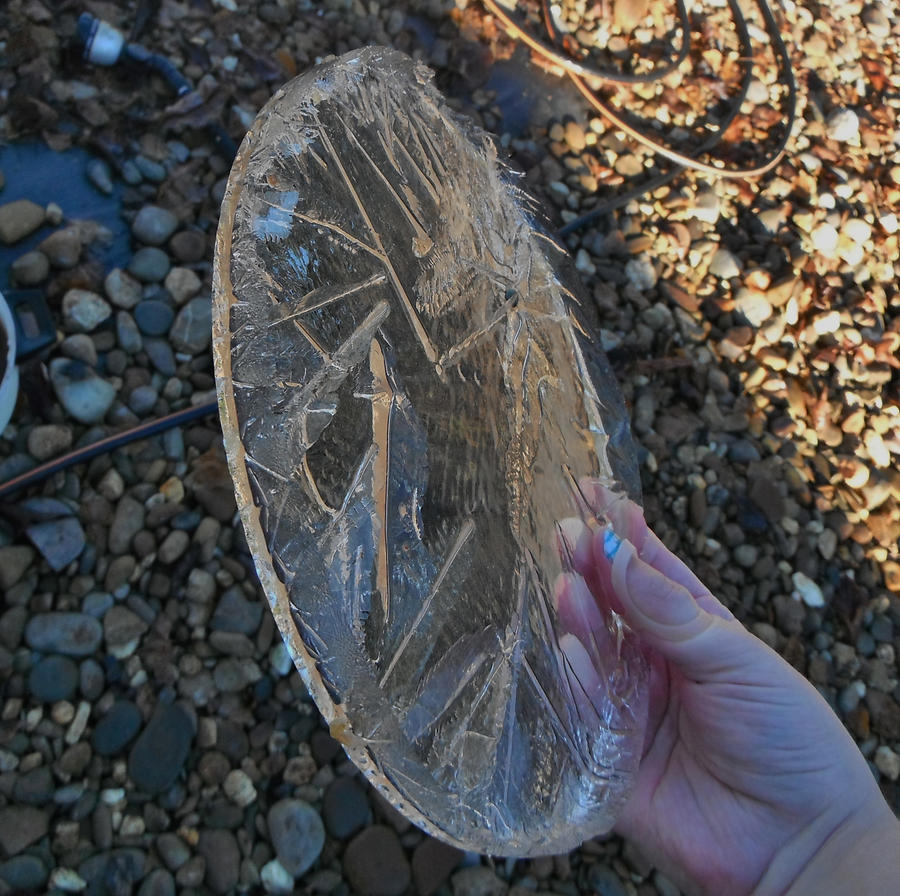
I love it in winter when ice plates form on the water dish that we leave out for the birds! Here are some pictures that I took the other morning at about 10am:
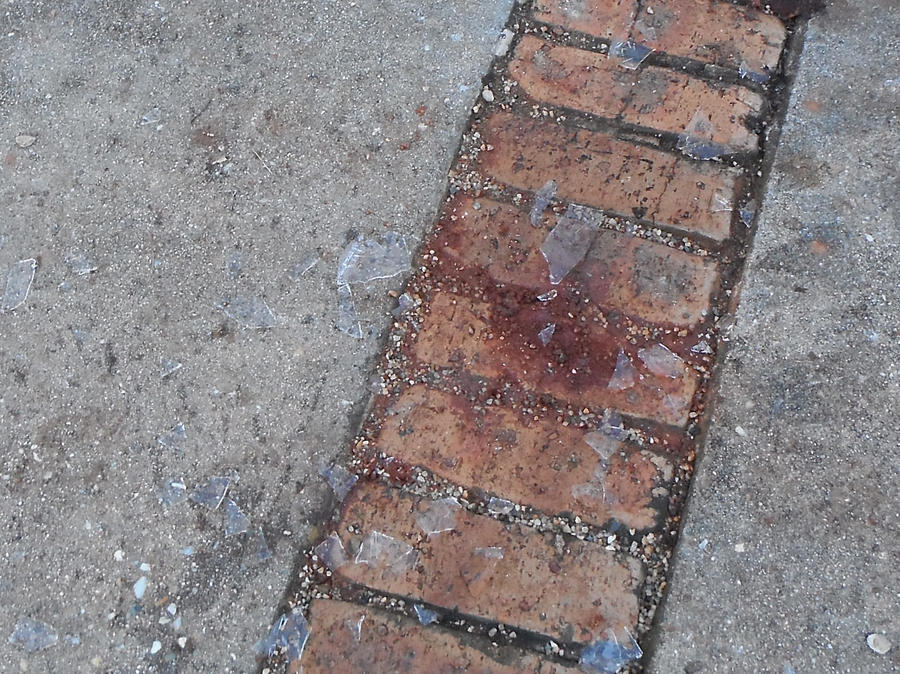
After taking some pictures, I broke the ice plate on the concrete. It made a sound like breaking glass!
~Ad =)
Thursday, July 5, 2012
Wednesday Nail Design!
Since I had a hand therapy appointment yesterday, I decided to try to make my nails look a bit pretty =D. I used Sally Hansen Hard as Nails Xtreme Wear (in Celeb City, and Disco Ball), with stripes and dots of BYS Nail Art Lacquer (in blue and pink). Here is how they turned out:
~Ad =D
(Thanks to @Ellenya for taking the pictures of both of my hands together!)
Sunday, July 1, 2012
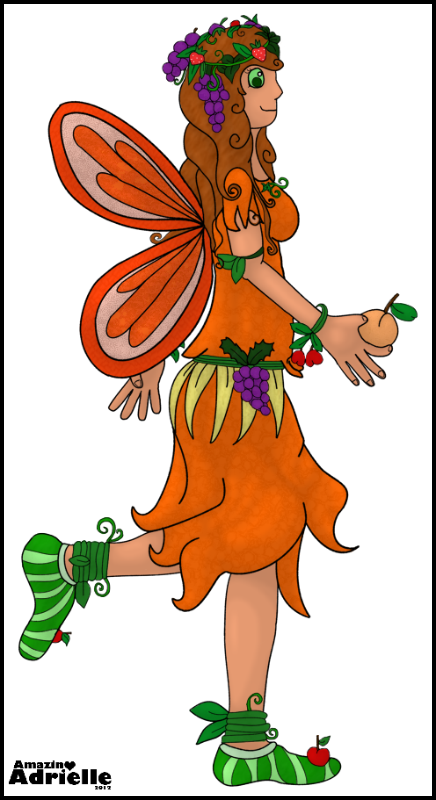
The Fruit Fairy & Shading in Photoshop!
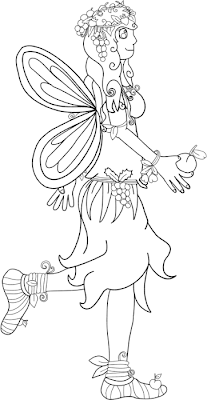
Over the last couple of days, I have been drawing a Fruit Fairy. She started off as a colourful digital sketch:
Then I tidied up the outline:

Shaded it in:
And finished it off =D
I thought I would add a short attempt at showing how I shade things using Photoshop.
Firstly, the main tools that I use are:
1. "Layer" > "New Layer"
2. The brush selection tool (mainly just to adjust the brush size, and to switch between hard-edged and fuzzy)
3. The paint brush tool
4. The eraser tool
5. The zoom tool
I start by drawing an outline with the hard-edged brush tool:
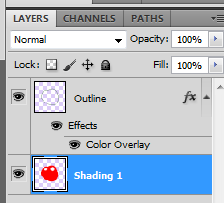
Then, I make a new layer (by going to "Layer" > "New layer" in the top bar). I drag this new layer down below the outline layer in the "Layers" tab on the right, so that it is behind the outline:
I then use the fuzzy brush tool to shade my object. I usually end up with 3 layers of shading - the first covering all but the brightest parts of my object, the second covering all but the next brightest areas, and so on. I use the colours red, orange and yellow for the shading layers, so that they are easy to see against the black outline.
In a fairy example, the red is Shading Layer 1, the orange is Shading Layer 2, and the yellow is Shading Layer 3:
So that my shading layers blend nicely, I use a filter to blur them a little. Going to "Filters" in the top bar, then selecting "Blur" > "Box blur" brings up a box that allows you to choose how blurred your layer will become, and shows you a preview. Blurring each shading layer should make the transitions between them appear more even. (Sometimes you may need to go around your outline with an eraser and tidy up if the blur has gone too far outside the lines!)
Then, with each of my three shading layers, I double click them (in the "Layers" tab on the right) to open the "Blending/Layer style" dialogue box. I select the "Color overlay" option:
Then I double click the colour box (the black rectangle above the "100%" in the example above) to bring up the colour selection dialogue, and I change the overlay colour to black (if it is not black already).
Once my layer is black, I go back to the main tab of the "Blending/Layer Styles" box, and change the "General Blending" opacity to between 5 and 20%, depending on how dark I want the shading to be.
Tip: Once you have set the opacity and overlay colour for one of your shading layers, you can right click that layer in the "Layers" tab on the right, and select "Copy layer style". Then you can right click your other shading layers and choose "Paste layer style" to save you having to set them all separately =D.
Lastly, I create a colour layer underneath the shading layers, and colour in my shape (for this apple-ish thing, I chose red).
That is how I shaded the Fruit Fairy (and the appleish thing) in Photoshop =D
~Ad =D
Monday, June 25, 2012
Animating the Cat!
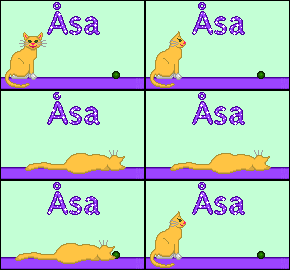
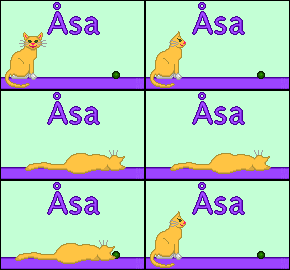
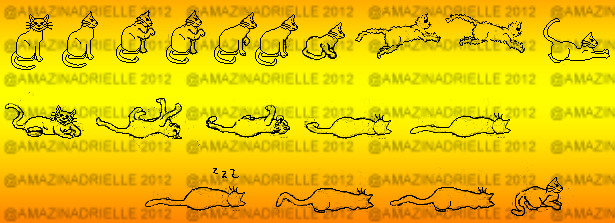
As part of my Pixel Animation Challenge, I animated a cat last week (for @musicalcat/Åsa). It was one of the hardest animations that I have ever done, as it required accurate pixel by pixel dotting over each frame - but I am really happy with the way that the final animation turned out! Here are the finished animations - one with glitter, and one without:
How it was made:
To start off with, I drew a lot of different little pixel outlines of cats in different poses. I sort of knew that I wanted the cat to pounce and play with a toy, and then to somehow return back to its original position (so that the animation would loop neatly). Luckily, Moke (my angel cat) was around to model for me =).
After I had the basic timeline in my head, and the rough outlines of the cats for most of the frames, I tidied them up so that the outlines were clean. This meant spending a lot of time zoomed in, dotting pixels, then zooming out to check that the images still looked cat-like!
I found that I needed to draw some extra cats (especially for when the cat gets up after lying down). Once I had the animation running smooth(ish)ly, I compiled a 2-colour .gif file of the outlines to test it out.
It seemed to work well, although certain sections were a little fast. I then commenced colouring in each frame, shading by dotting little darker pixels...
I slowed down parts of the animation (by adding more frames) so that it ran more smoothly, and I made sure that each frame was the same length (0.1 seconds). I then added a border, the background and the text (on a separate layer, so that I could have it showing behind the animation, and have it appearing in all frames). I also added some glitter layers over the text (transparent layers with little dots and stars in the foreground), so that I could have one glitter layer showing per frame, and cycle through them in random order. This gives the effect of glitter over the text.
Finally, I compiled the two final versions of the animation - one with glitter, and one without:
I really enjoyed the challenge of making this animated cat, and I am happy with the finished product =D.
~Adrielle =)
Thursday, June 21, 2012
Silver Stripe Nails =)
Tonight, I re-did my nails =). I chose a silver stripe design, using silver glitter BYS Nail Art Lacquer, a silver Manicare GlamNails Nail Art Pen, and some glitter top coat. Here is how it turned out:
~Ad =)
~Ad =)
Subscribe to:
Comments (Atom)
.jpg)
.jpg)
.jpg)
.jpg)
.jpg)
.jpg)
.jpg)
.jpg)
.jpg)
.jpg)


.jpg)
.jpg)
.jpg)
.jpg)
.jpg)
.jpg)
.jpg)
.jpg)
.jpg)
.jpg)


.jpg)
.jpg)
.jpg)
.jpg)
.jpg)
.jpg)
.jpg)
.jpg)
.jpg)